Human-Machine Interfaces
In case if a RoboPLC program is running on a machine with a display, it can communicate with the user through a Human-Machine Interface (HMI). The HMI can be used to display information about the current state of the machine, as well as to allow the user to interact with the machine by sending commands or changing settings.
Contents
Text-based HMI
Basics
Modify RoboPLC program service to let output to the primary TTY:
sudo systemctl edit roboplc.program.service
Add the following lines:
[Service]
StandardOutput=console
StandardError=journal
TTYPath=/dev/tty1
After, any approach can be used, from simple print statements to more complex console-based frameworks, such as Cursive, Ratatui or similar.
Displaying logs
Sometimes it is useful to display logs only. The default RoboPLC logger logs to stderr, so modify the systemd roboplc.program service as the following:
[Service]
StandardError=console # or journal+console
TTYPath=/dev/tty1
Add to /etc/roboplc/program.env the following line to enable date/time in logs:
ROBOPLC_LOG_STDOUT=1
After, roboplc::configure_logger() method enables logging to the TTY with the detailed format.
Graphical HMI
To output to a graphical interface, a X-server or Wayland compositor must be running. After, any GUI framework can be used. RoboPLC also has got certain tools to simplify this task in HMI module.
Wayland
Wayland is a modern display server protocol that is designed to be simpler and faster than X11. It is recommended to use Wayland for new GUI applications.
Installation
It is recommended to use weston as a Wayland compositor. It is lightweight, fast and supported out-of-the-box:
sudo apt-get -y install weston
sudo apt-get -y install libgl1-mesa-glx # required for some older systems
Configuration
Create a file /etc/xdg/weston/weston.ini with the following content:
[core]
# Disable everything except the main program output
shell=kiosk-shell.so
# Disable the screen saver
idle-time=0

[shell]
locking=false
panel-location=""
panel-position=none

# Configure the output
[output]
name=DP-1
mode=1280x720@60.0

# Optional: configure touchscreen if supported
#[libinput]
#touchscreen_calibrator=true
#calibration_helper=/usr/bin/save-calibration.sh
In case if a touchscreen is used, create /usr/bin/save-calibration.sh file with the following content:
#!/bin/bash

echo 'SUBSYSTEM=="input", KERNEL=="event[0-9]*",
ENV{ID_INPUT_TOUCHSCREEN}=="1",
ENV{LIBINPUT_CALIBRATION_MATRIX}="'$2 $3 $4 $5 $6 $7'"' > /etc/udev/rules.d/touchscreen.rules
Do not forget to make it executable:
sudo chmod +x /usr/bin/save-calibration.sh
After, when weston is running, start weston-touch-calibrator once to calibrate the touchscreen. It is also useful to run the calibrator from HMI to allow users to do re-calibration.
Usage
Note
Do not forget to enable hmi feature of roboplc crate.
Create a dedicated RoboPLC worker which starts weston and then runs the GUI application:
use roboplc::hmi;

// it is recommended to run the HMI worker on a dedicated CPU core with high
// priority to make the UI as smooth as possible
#[derive(WorkerOpts)]
#[worker_opts(cpu = 1, priority = 90, scheduling = "fifo", blocking = true)]
struct HmiWorker {}

impl Worker<Message, Variables> for HmiWorker {
    fn run(&mut self, _context: &Context<Message, Variables>) -> WResult {
        hmi::start_server(
            hmi::ServerKind::Weston.options()
                .with_kill_delay(Duration::from_secs(1))
                .with_spawn_delay(Duration::from_secs(2)),
        );
        // Run the GUI application
        Ok(())
    }
}
Add a line at the end of main function to stop weston when the program is stopped:
hmi::stop();
In case if an older weston version is used, use hmi::ServerKind::WestonLegacy, which automatically adds --tty=1 to the launch line.
It is also possible to use any custom display server, specifying hmi::ServerOptions manually. The server will be automatically started and terminated.
See also a full code example: https://github.com/roboplc/roboplc/blob/main/examples/hmi.rs
egui integration
egui is a lightweight and fast GUI library for Rust which has got additional seamless integration with RoboPLC. To use egui-based HMI, start GUI as the following:
use roboplc::hmi::{self, eframe, egui};

#[derive(WorkerOpts)]
#[worker_opts(cpu = 1, priority = 90, scheduling = "fifo", blocking = true)]
struct HmiWorker {}

impl Worker<Message, Variables> for HmiWorker {
    fn run(&mut self, context: &Context<Message, Variables>) -> WResult {
        roboplc::system::wait_running_state()?;
        loop {
            let mut opts = hmi::AppOptions::default();
            if roboplc::is_production() {
                // For production - spawn Weston server
                opts = opts.with_server_options(
                    hmi::ServerKind::Weston
                        .options()
                        .with_kill_delay(Duration::from_secs(2))
                        .with_spawn_delay(Duration::from_secs(2)),
                );
            } else {
                // For development - run windowed app with no server spawned
                opts = opts.windowed();
            }
            if let Err(error) = hmi::run(MyHmiApp {}, context, opts) {
                error!("HMI error: {}", error);
            }
            thread::sleep(Duration::from_secs(5));
        }
    }
}

struct MyHmiApp {}

// The application is basically equal to a typical egui app, the only difference is that the update
// function gets the controller context as an argument.
impl hmi::App for MyHmiApp {
    type M = Message;
    type V = Variables;

    fn update(
        &mut self,
        ctx: &egui::Context,
        frame: &mut eframe::Frame,
        plc_context: &Context<Self::M, Self::V>,
    ) {
    // Draw the GUI here
    }
}
The hmi::App trait is an extension of egui::App trait to provide access to PLC context without a need to pass it through the UI structure manually.
Creating HMI elements
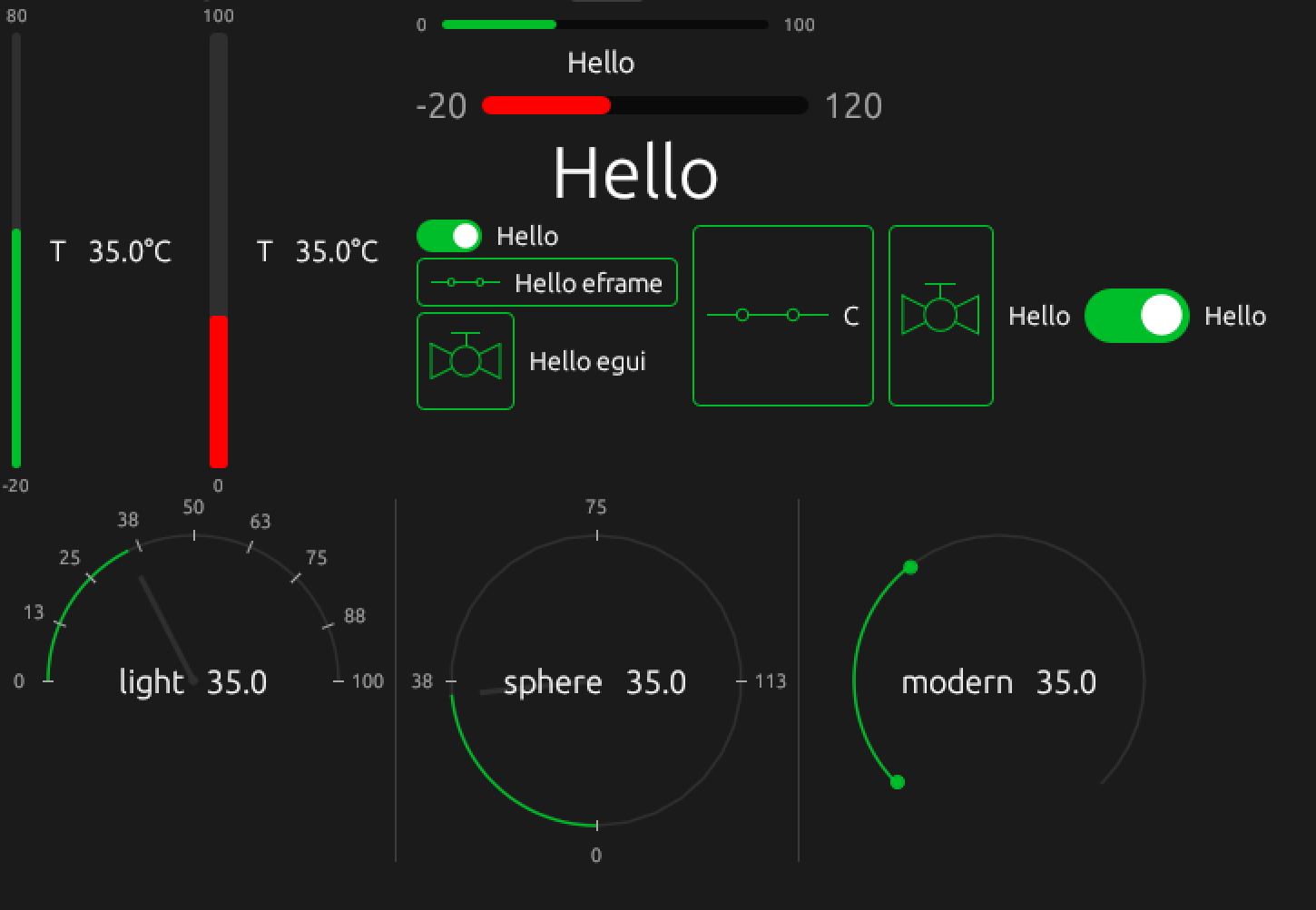
It is recommended to use ehmi crate which is a part of RoboPLC ecosystem. It provides a set of widgets for typical HMI applications.
Handling special keys
Certain special keys can not be handled by UI frameworks properly. RoboPLC provides a feature input-events, which allows to easily handle any global keystrokes.
An example of handling Sleep key is shown below:
#[derive(WorkerOpts)]
#[worker_opts(cpu = 3, priority = 50, scheduling = "fifo", blocking = true)]
struct KeyHandler {}

impl Worker<Message, Variables> for KeyHandler {
    fn run(&mut self, context: &Context<Message, Variables>) -> WResult {
        let mut sleep_pressed_at: Option<Monotonic> = None;
        for key in roboplc::io::keyboard::GlobalKeyListener::create(&[
            roboplc::io::keyboard::KeyCode::KEY_SLEEP,
        ])? {
            if key.code() == roboplc::io::keyboard::KeyCode::KEY_SLEEP {
                match key.state() {
                    roboplc::io::keyboard::KeyState::Pressed => {
                        sleep_pressed_at = Some(key.time());
                    }
                    roboplc::io::keyboard::KeyState::Released => {
                        if let Some(pressed_at) = sleep_pressed_at {
                            if key.time() - pressed_at > Duration::from_secs(1) {
                                info!("Sleep pressed");
                                // perform some action
                            }
                        }
                    }
                    _ => {}
                }
            }
        }
        Ok(())
    }
}
X-server
X11 server is a legacy system for managing graphical displays on Unix-like operating systems.
Installation
sudo apt-get -y install xserver-xorg libxi6 libxkbcommon-x11-0
Configuration
Create the file /etc/X11/xorg.conf.d/10-monitor.conf, set the resolution etc.
Section "Monitor"
 Identifier "DP-1"
 Option "PreferredMode" "1280x720"
EndSection
Usage
Use hmi::start_server or hmi::run methods with hmi::ServerKind::Xorg ` server type.
Trobleshooting
In case if the GUI server is unable to start:
Check the server logs. If launched by the program, the logs are written to roboplc.program logs.
Certain embedded systems may require higher spawn/kill delays to let the TTY switch to the graphical mode and back.
Make sure there is no other graphical server running on the same TTY.
Ensure the roboplc.program service (/lib/systemd/system/roboplc.program.service) has got RuntimeDirectory configured:
[Service]
# ..
RuntimeDirectory=roboplc
RuntimeDirectoryMode=700